Stripe subscriptions are a great fit for software that delivers continuous value, such as regular updates and cloud-synced features.
Keyforge integrates with Stripe subscriptions to fully automate your licensing: licenses are created when someone subscribes, extended on each billing cycle, updated when customers change plans, and expire when a subscription ends. Keys are cryptographically signed for offline verification. There are no webhooks to configure, and no backend to maintain.
This guide covers recurring subscription licensing. If you're selling individual (one-time) purchases instead, see the Stripe purchases guide.
Prerequisites
Before starting, make sure you have:
- A product created in the Keyforge dashboard.
- A Stripe account with at least one subscription product.
Step 1: Connect your payment account
Go to Payment Accounts in the Keyforge dashboard and connect your Stripe account.
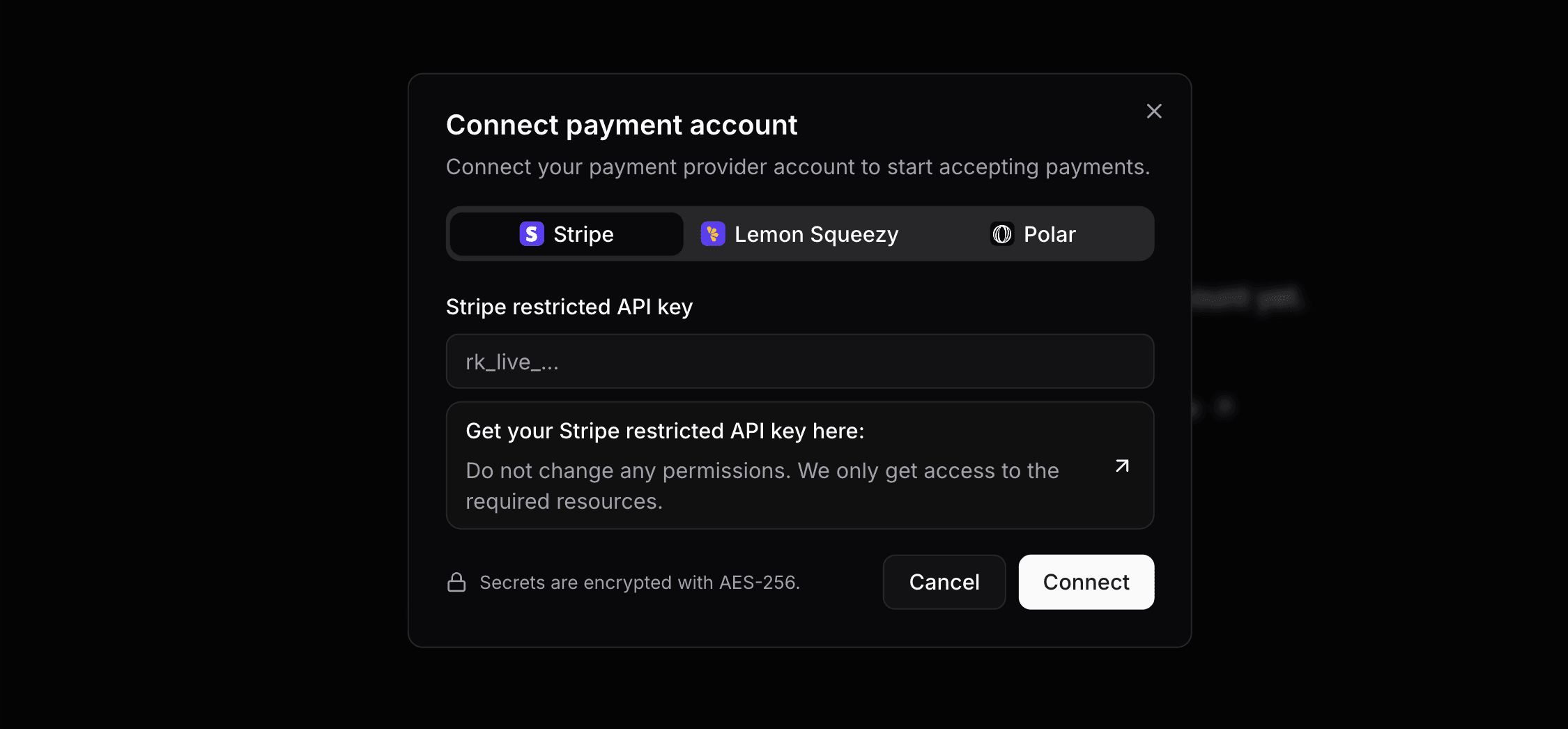
Keyforge uses a restricted Stripe API key with only the needed permissions. Your credentials are encrypted at rest with AES-256.
Once connected, Keyforge automatically configures the webhook endpoint on your Stripe account.
Enable the Stripe billing portal
For customers to manage their subscriptions (change plans, update payment methods, cancel), you need to enable the billing portal in your Stripe settings.
Step 2: Connect your Stripe subscription product
Go to Payment Products and click Connect product to link a Stripe recurring price to a Keyforge product.
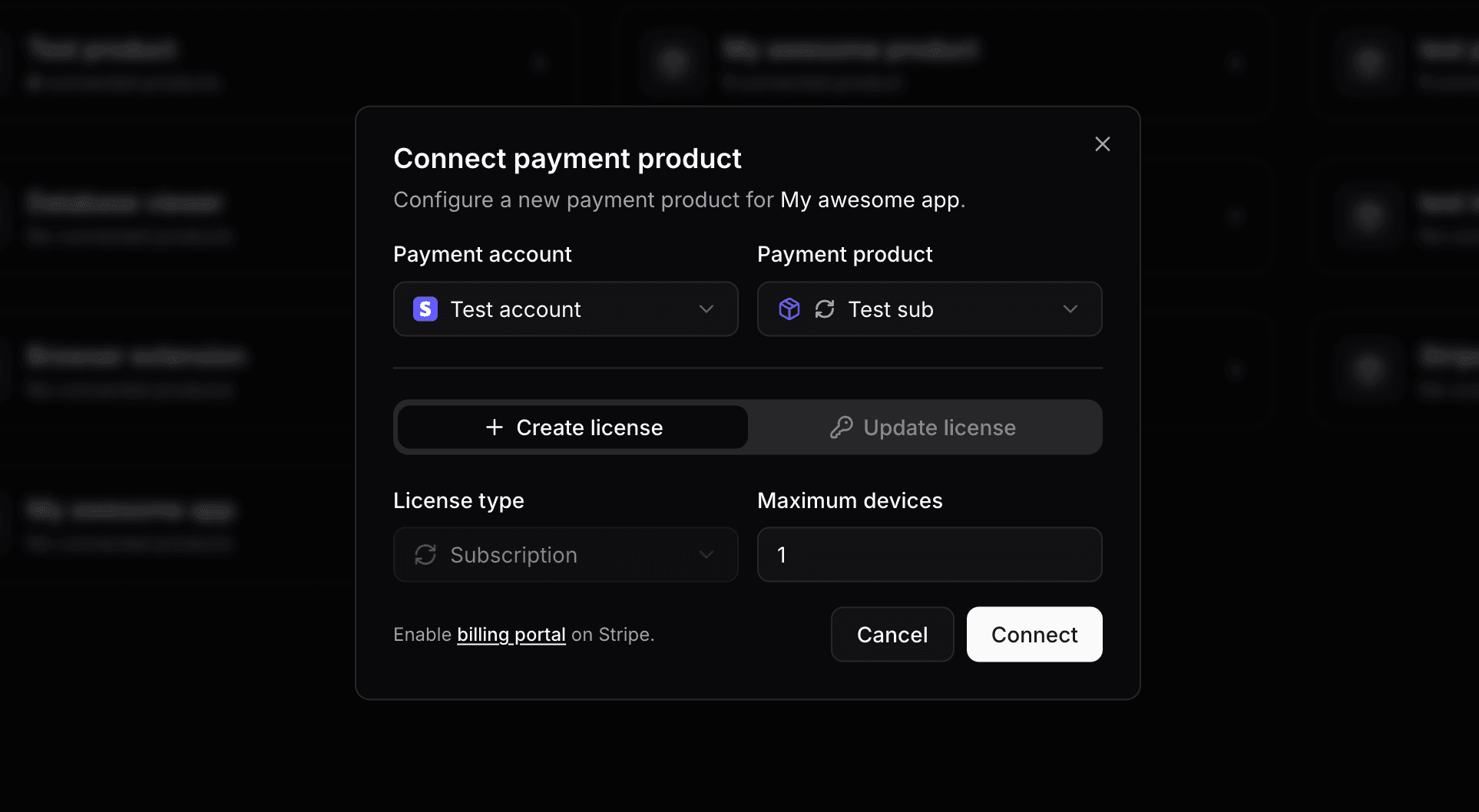
For recurring prices, Keyforge always creates a timed license. The expiration is set to match the end of the current billing period and is automatically extended every time an invoice is successfully paid.
You can configure:
- Maximum devices: how many devices the license can be simultaneously activated on.
Step 3: Start selling
With the setup complete, Keyforge handles the rest. When a customer subscribes through Stripe:
- A timed license is created with an expiration matching the subscription period.
- The customer receives a personalized email with their license key.
- On each successful renewal, the license expiration is automatically extended to match the new billing period.
If a subscription is cancelled, the license remains active until the end of the current paid period and then expires automatically. No manual intervention is needed.
Managing plan changes
If you offer multiple subscription tiers (e.g., Basic, Pro, Business), connect each Stripe price to its own Keyforge product. When a customer upgrades or downgrades their plan through the Stripe billing portal, Keyforge detects the change and automatically updates their license to match the new product configuration.
Device limits, custom notes, and other license settings stay in sync with the customer's current plan without any extra work on your end.
Seat-based licensing
If your Stripe product uses quantity for per-seat pricing, Keyforge automatically multiplies the license's max active devices by that quantity. A team of 5 on a plan with a 1-device limit gets a license that allows 5 simultaneous activations. When they add or remove seats, the license updates accordingly.
Free trials
Free trials work without any extra Keyforge configuration. Set up the trial period on Stripe, and Keyforge generates the license when the trial begins so customers get their key immediately. Licenses expire if the trial ends without converting.
Perpetual fallback
Perpetual fallback is a product-level setting that allows expired licenses to remain in a limited state rather than becoming fully invalid. When enabled, expired licenses have an status of fallbacked instead of expired. Your application decides what limited access means in practice.
const data = await res.json();

if (data.status === 'active') {
  // Full access - subscription is current
} else if (data.status === 'fallbacked') {
  // Subscription lapsed - grant limited access
} else {
  // Invalid - prompt the user to enter a license key
}
For subscriptions, this is most useful when customers have built up something of value during their subscription. Some examples:
- Content access: let customers keep viewing content or exports they created while subscribed, even after cancellation.
- Offline data: keep locally cached data or downloaded assets accessible after the subscription ends.
- Grace window: give customers a short period to re-subscribe before their access is fully revoked, by comparing the expiration date to the current date.
When paired with the customer portal, customers whose subscriptions have lapsed can see their license status and re-subscribe through the Stripe billing portal without needing to contact support.
Customer portal
Customers access a self-serve portal at keyforge.dev/portal using just their email address. No account creation is needed. They receive a 48-hour access link by email.
From the portal, customers can:
- View all their licenses and manage active device activations.
- Access the Stripe billing portal to update payment methods, change plans, or cancel their subscription.
All billing and subscription management is delegated to the Stripe billing portal. Keyforge keeps licenses automatically in sync as billing events happen.
You can customize the portal per product: add a purchase note or thank-you message, include a custom button (e.g., linking to your download page), and control whether customers can reset their own device activations.
Conclusion
Once connected, Keyforge and Stripe handle the full subscription license lifecycle automatically. New subscribers get a license key by email, renewals extend it, plan changes update it, and cancellations expire it at the right time, with no backend required on your end.
For individual purchases instead of subscriptions, see the Stripe purchases guide.
License and distribute your software product with ease
Focus on building your product and let us handle licensing. Manage license keys via payments and give your customers a smooth experience.